
Open, Save and Export Many Files on Your Own PC, Straight from Any Remote App
Every remote application platform has the same awkward moment. The application runs on a server, the file is on your laptop, and the two never quite meet. With DartRelay 2.5 they do: when a published Windows program opens or saves a file, the person uses their own computer's native file browser, as if the program were installed locally.
It works for one file, for several files at once, and for programs that export a whole folder. It works with legacy applications exactly as they are: no rewrite, no patch, no plug-in, and nothing for you to configure on your servers. To our knowledge, no other browser-based remote application platform does this today.
The problem: files are on the wrong side of the session
When an accountant clicks Import in a published finance application, Windows shows the server's Open dialog. It lists the server's drives, not the laptop's. The usual fixes all add steps:
- Upload first, then find it. Open the portal's file manager, upload the file to a server folder, switch back, then browse to that folder in the program.
- Redirected drives. Map the user's disk into the session (where the client supports it at all), with the security questions that come with it.
- Change the application. Rarely possible for a line-of-business program, and never for a 15-year-old one.
Exports are worse: a program that writes twenty attachments into a folder leaves the user to fetch twenty files from a server share.
What DartRelay does instead
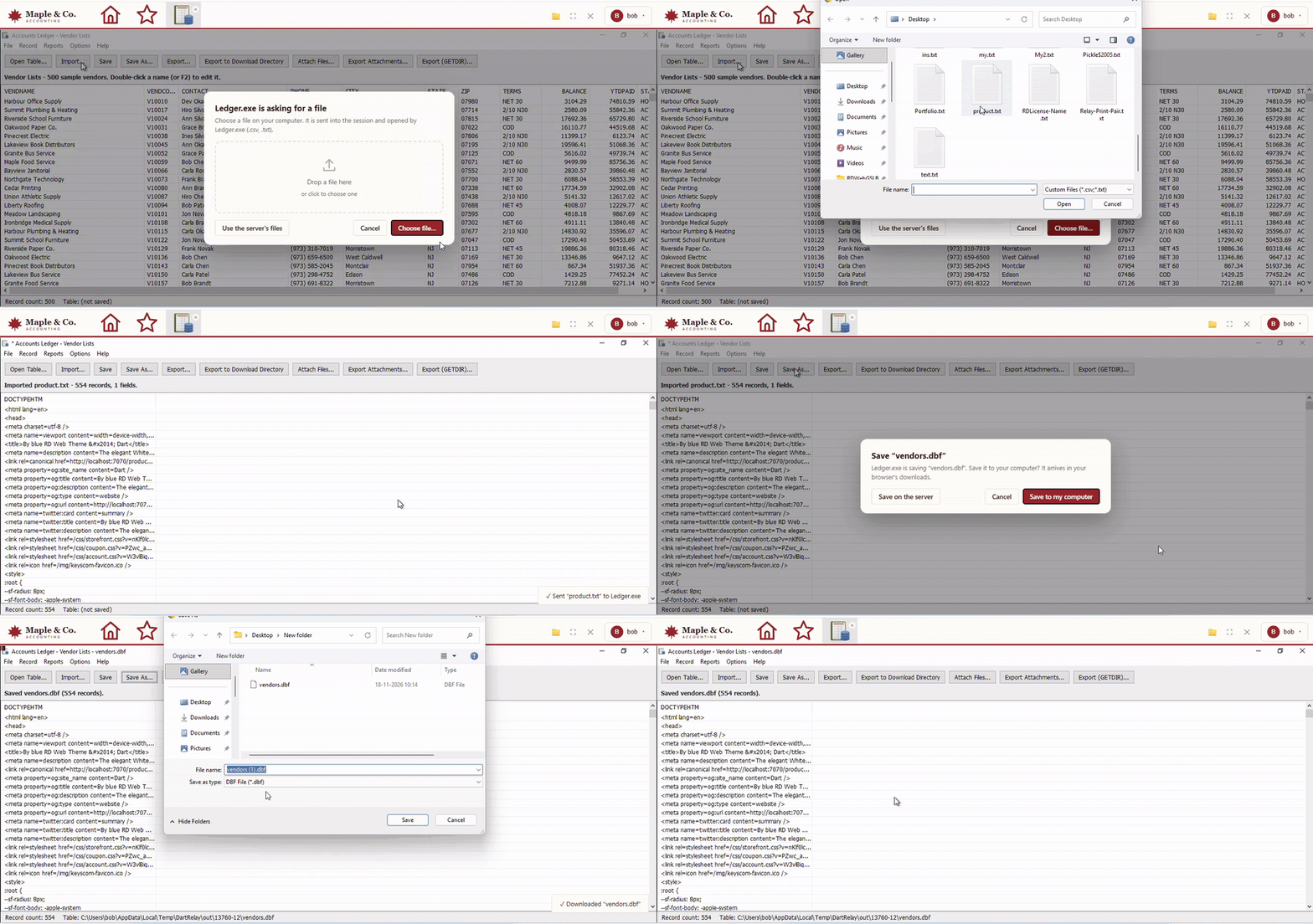
DartRelay recognises the standard Windows Open, Save As and folder dialogs inside the session and hands them to the browser. The program never knows the difference.
Open and import with your own file browser
The program asks for a file, and a DartRelay box appears in the browser. Drop a file on it or click Choose file…, and the computer's own file browser opens: File Explorer on a PC, Finder on a Mac, with your Desktop, Downloads, OneDrive and recent folders exactly where you expect them. When the program saves, the browser asks Save to my computer? and the file lands in your Downloads.
Several files at once
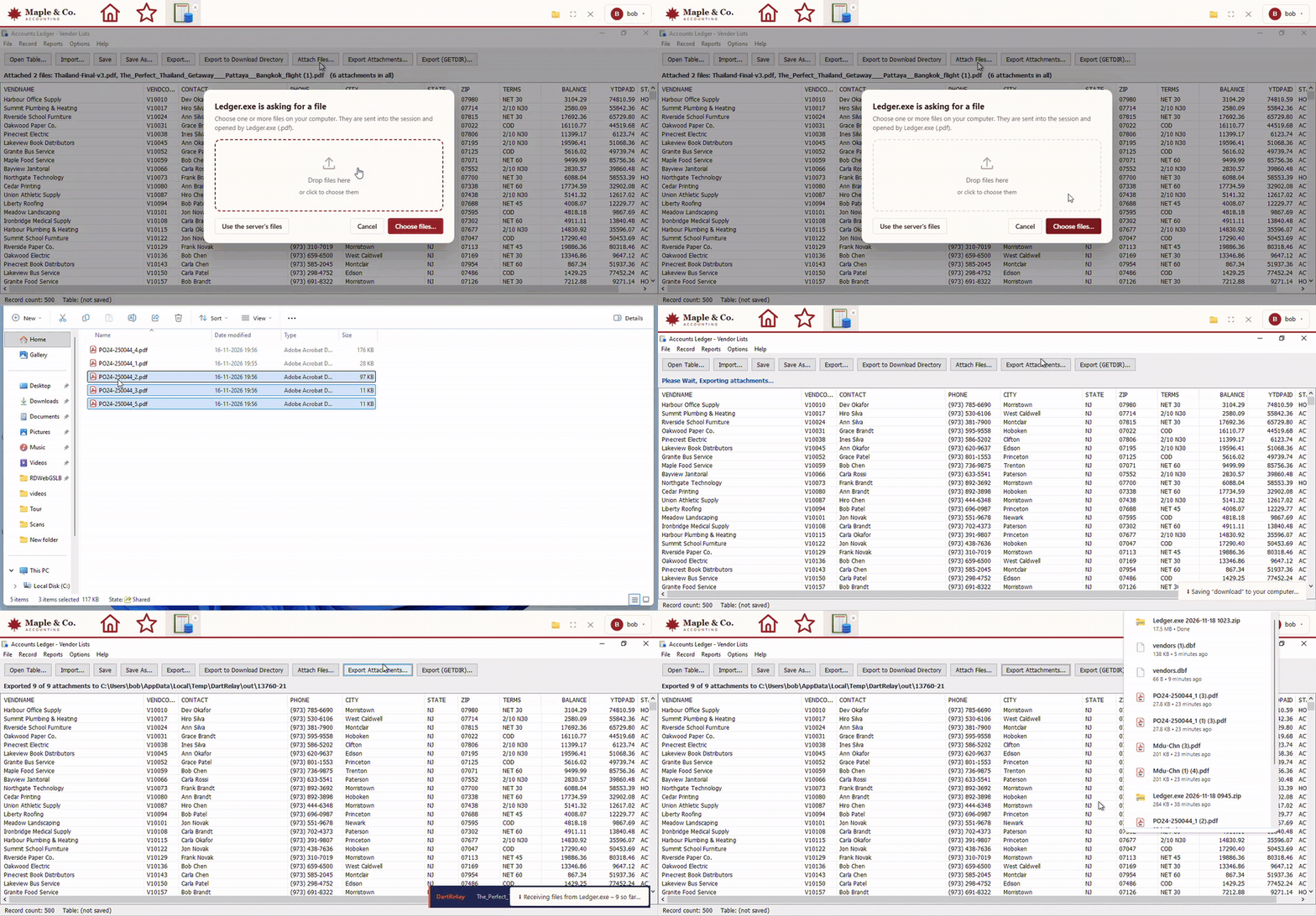
When the program's own dialog allows a multiple selection, so does DartRelay. Attach Files, Import or Add documents: select ten files in your file browser, or drag them all onto the box. They all travel into the session and the program receives them together, exactly as if they had been picked in its own dialog.
Export a whole folder: one ZIP or separate files
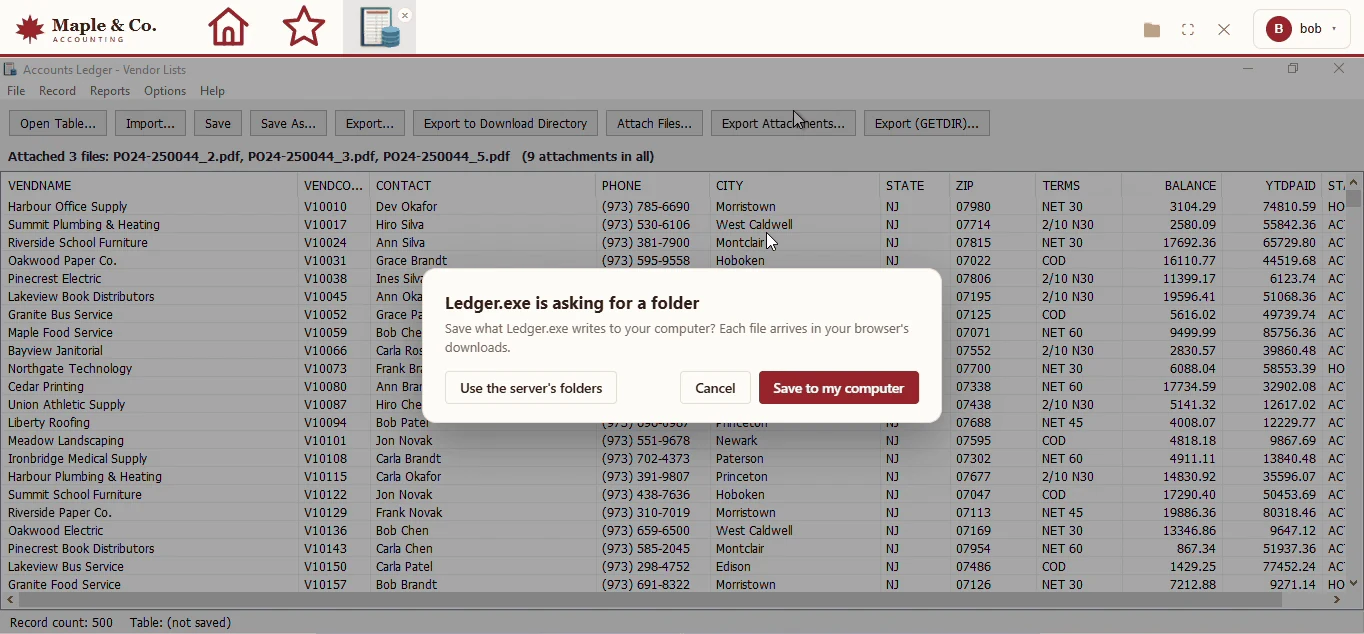
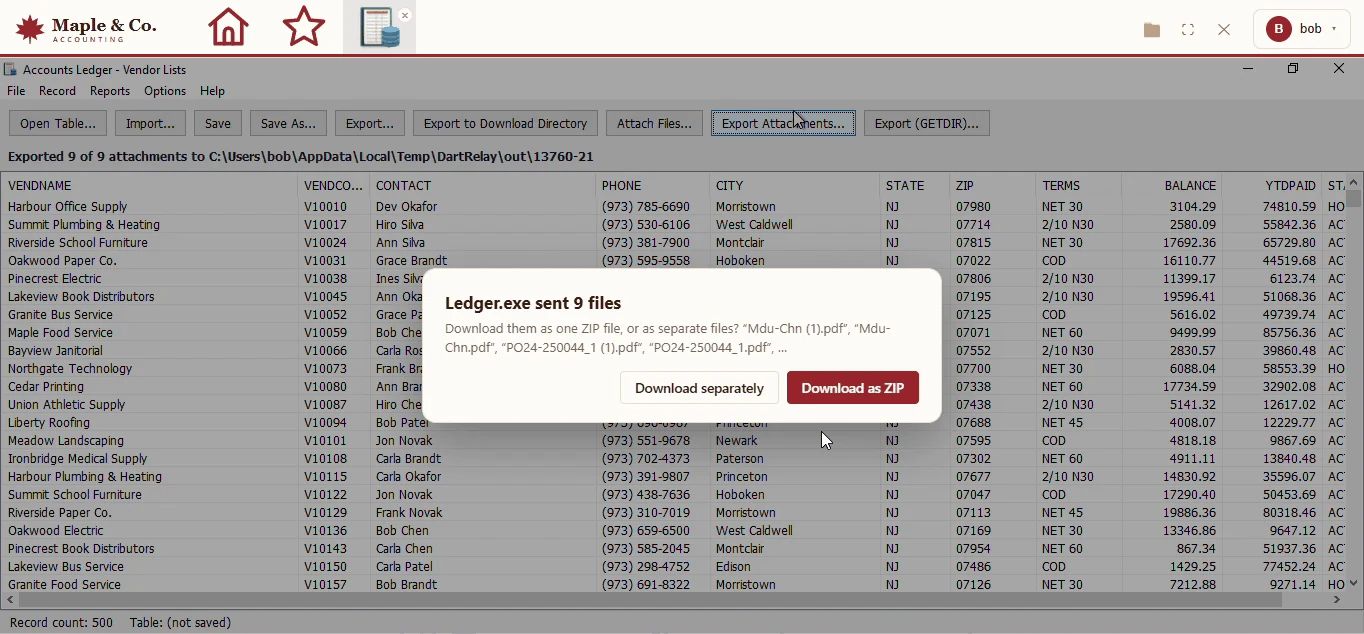
Some programs do not save a file; they ask for a folder and fill it: Export attachments, Export all reports, or the classic Browse For Folder tree of Visual FoxPro and other older applications. DartRelay handles those too. Everything the program writes comes to the browser, as one ZIP file or as separate downloads.
You decide: ZIP, separate files, or ask
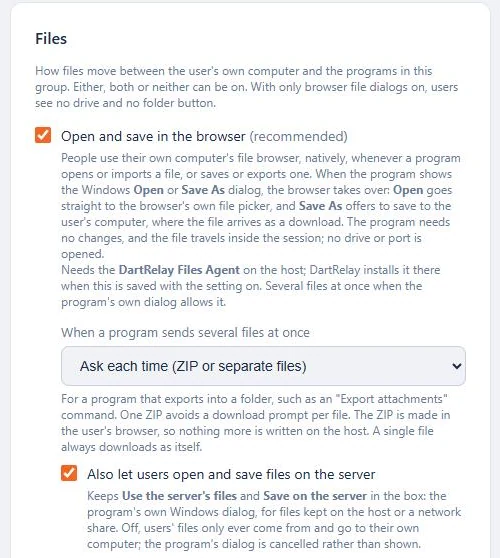
Administrators choose, per application group, how a multi-file export should arrive. The setting sits on the app group's Files card, next to the switch that turns the whole feature on:
- Ask each time (ZIP or separate files): the default. Users choose Download as ZIP or Download separately for each export.
- Always download one ZIP file: one tidy download and no prompt per file, ideal for exports of dozens of files.
- Always download separate files: each file downloads as itself, ready to open.
The ZIP is made in the user's browser, so nothing extra is written on the host. A single file always downloads as itself.
Any legacy application, as it is
No source code, no patch, no plug-in, no re-packaging. If the program uses the standard Windows file dialogs, it works.
DartRelay does not inject anything into the application. A small helper on the host recognises the standard dialogs from the outside and fills them in the way a person would. That is why it works with applications nobody can change any more: Visual FoxPro and Access front-ends, older accounting and practice-management systems, and in-house tools from another decade.
Nothing special to configure on your servers
There are no drive mappings to set up, no file shares, no firewall rules and no group policies. Tick Open and save in the browser on the application group and save. DartRelay installs its small Files Agent on the hosts that need it, keeps it up to date with every release, and upgrades it without signing anyone out. Users install nothing at all: any modern browser on Windows, macOS, Linux or a Chromebook will do.
Secure by design
- Files travel inside the encrypted remote session, on a channel DartRelay opens only for the applications you allow.
- No mapped drive and no open port. The user's disk is never exposed to the server.
- The user chooses every file. Nothing is read from their computer unless they pick it, and nothing is saved to it unless they choose to.
- Prefer to keep files on the server for some applications? Leave Use the server's files on, and the program's own dialog is one click away.
How it compares
| Task | Typical HTML5 remote app portal | DartRelay 2.5 |
|---|---|---|
| Open a file from your PC | Upload to a server folder first, then browse to it | Your own file browser, straight from File → Open |
| Several files | Upload one by one, or zip them yourself | Multi-select in your file browser |
| Folder exports | Fetch each file from the server share | One ZIP or separate downloads, your choice |
| Changes to the application | Sometimes needed | None |
| Server configuration | Drive redirection, shares, policies | One tick; DartRelay deploys the rest |
See it on your own applications
DartRelay is self-hosted, so the quickest way to judge it is with your own programs. Start the 30-day free trial, try our live DartRelay demos, or ask our engineers for a guided tour. The administrator guide covers every setting: Open and save on your own computer.