
Auto-Launch and Anonymous Access with DartRelay: Public Apps and Kiosks Without Shared Files
Some applications should not need a sign-in page at all. A public booking system, a self-service form at a reception desk, a ward terminal, a till, a demo you send to prospects. Historically, publishing a Windows application like that meant a shared Windows account, a shared desktop and, too often, a shared folder where one visitor could see what the last one left behind.
DartRelay handles this with two features that work together: automatic launch rules, which open the right application the moment someone arrives, and anonymous access, which lets visitors in without a password. Combined with DartRelay's native file dialogs, visitors use their own computer's file browser, so nothing they open or save is ever left on a shared server folder.
Automatic launch: straight into the application
An auto-launch rule says what to open and for whom. When somebody arrives at the portal, DartRelay walks the rules chosen for that web address from the top, and the first one that applies opens its application. No tiles to find, no clicks.
- What to open: a specific application or desktop, the first resource on the person's portal, or the only resource when they have exactly one.
- Who it applies to: everyone, or members of portal or Active Directory groups. The till rule can open the till app for shop staff while the office sees the normal portal.
- Per address: rules are chosen and ordered on each web address, so book.example.com and staff.example.com on the same installation behave differently.
- Safe by design: a rule can never grant access. It only opens something the person could already click on, and it fires once per sign-in, so nobody is trapped.
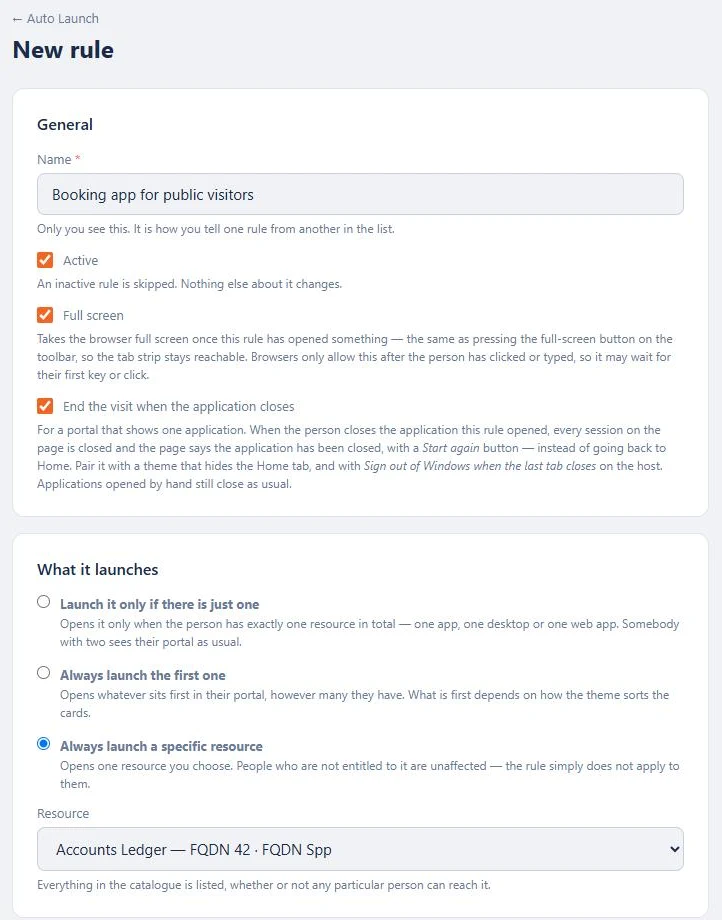
Full screen, and a clean ending
Tick Full screen and the portal offers a one-click switch to full screen as soon as the application opens. On managed kiosks and tills, the standard Chrome and Edge policy AutomaticFullscreenAllowedForUrls removes even that click: the portal loads full screen.
Tick End the visit when the application closes and closing the application closes every session on the page and shows a simple “has been closed” page with a Start again button. Combined with a stripped-down theme with no Home or Favourites tab, the portal becomes a single-application kiosk.
Anonymous access: no sign-in, still controlled
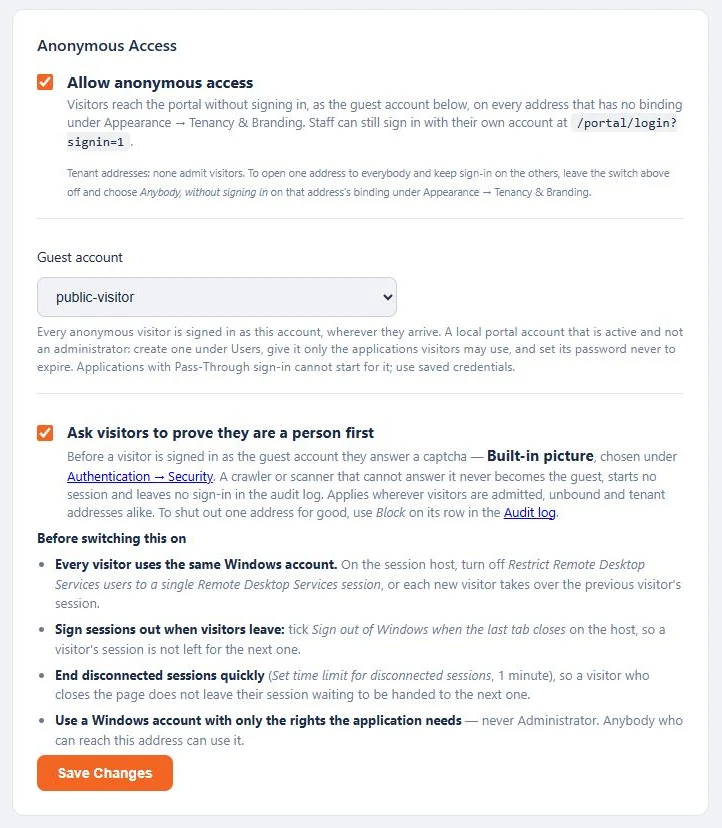
Anonymous access admits visitors without a password. Behind the scenes they are signed in silently as one guest account that you choose, so everything they can see is decided by that account's access list, and nothing else. You switch it on per web address: one address can be public while every other address of the same installation still asks for a sign-in.
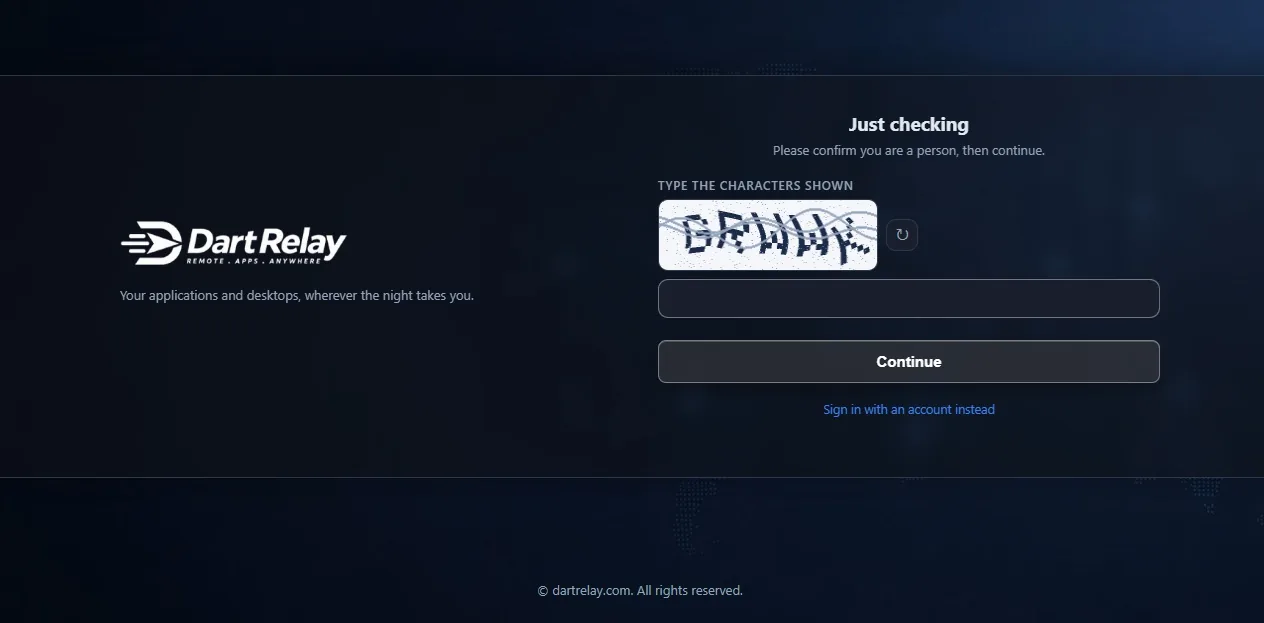
- Keep robots out. Public addresses attract scanners and crawlers. Tick the human check and visitors answer a picture CAPTCHA, styled in your theme, before they get in. Robots that fail never reach a session.
- Staff still sign in. Adding
?signin=1to the sign-in page address shows the normal form on a public address. - Least privilege on the host. Guest applications use a saved Windows account made for the purpose, never an administrator.
- Block abuse. Persistent addresses can be blocked from the audit log or the network access rules.
Every visitor gets their own session
All visitors sign in to Windows with the same saved account, which is exactly where traditional setups go wrong. DartRelay recognises this kind of shared logon and keeps visitors apart:
- Each visitor's browser gets its own Windows session. One visitor never takes over, or even sees, another visitor's screen.
- Sessions are cleaned up. When a visitor closes their last tab, DartRelay signs out the disconnected Windows session they leave behind, so the next visitor is never handed it.
- Each visitor's device takes one Relay Seat only while they have a session open.
No shared server folders: visitors use their own file browser
A public application usually still needs files: a visitor uploads a document to a form, or downloads the PDF the application produces. On most platforms that means a server folder or a mapped drive that every visitor of the shared account can reach. With DartRelay you do not need one.
Switch on Open and save in the browser for the application, and when the program shows its Windows Open or Save As dialog, the browser takes over. The visitor picks a file in their own computer's file browser, and what the program saves arrives in their own Downloads. Several files at once, and folder exports as one ZIP, work the same way.
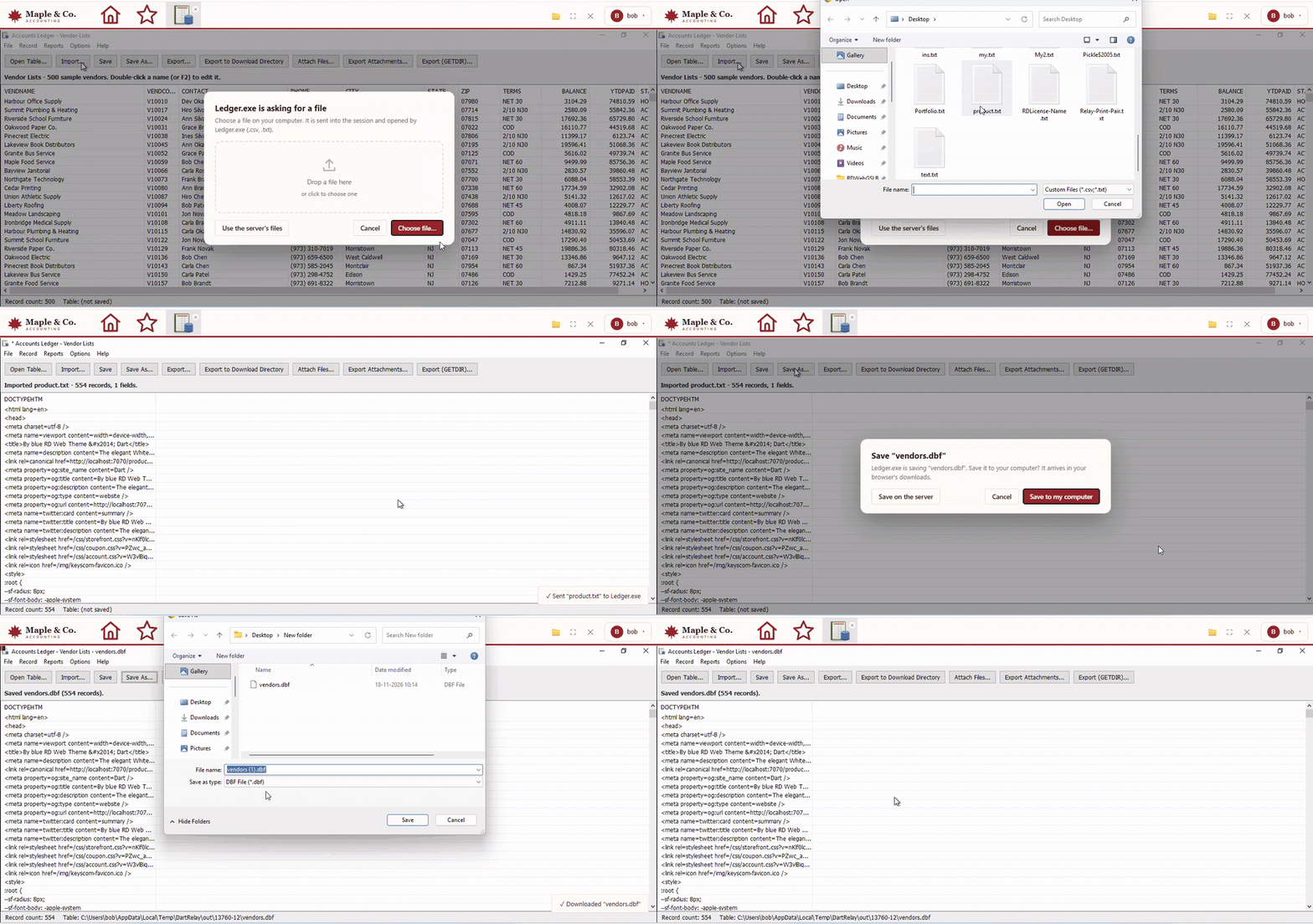
Then lock it down for public use:
- Untick “Also let users open and save files on the server”. The program's own Windows dialog is cancelled instead of shown, so visitors can never browse the server's folders. Files only ever come from, and go to, the visitor's own computer.
- Leave the virtual drive off. With only browser file dialogs on, there is no session drive and no folder button, so there is no shared folder for anyone to find.
- Transfers stay inside the session. Files travel inside the encrypted remote session, only for the applications you allow, with no mapped drive and no extra port. Temporary copies live in the session's own temporary folder, which Windows removes when the session signs out.
- Printing goes to the visitor too. A printed receipt or confirmation comes back to the visitor's browser and prints on their own printer, with no printer drivers on your host.
The visitor is the only person who ever chooses a file, and nothing is read from their computer unless they pick it.
Example: a public booking application
A sports centre publishes its Windows booking program for the public on book.example.com, while staff keep using staff.example.com on the same DartRelay server.
- A portal account guest is created and granted only the booking application, which signs in to Windows with a least-privilege account made for it.
- On the booking application's Files card, Open and save in the browser is on, Also let users open and save files on the server is off, and the virtual drive is off.
- An auto-launch rule opens the booking program for guest, in full screen, ending the visit when the program closes. It is chosen on the book.example.com address only.
- On Authentication → Authentication Methods, guest is chosen as the guest account and the human check is ticked. book.example.com is set to admit anybody, without signing in; staff.example.com stays sign-in only.
Members of the public open book.example.com, answer the picture check and land straight in the booking program, in full screen. They attach a document from their own computer, print their confirmation on their own printer, and close the program. Their session is signed out, and nothing they used is left behind for the next visitor.
Where this fits
| Scenario | How DartRelay handles it |
|---|---|
| Public or customer-facing Windows application | Anonymous access on its own address, auto-launch in full screen, human check against robots |
| Kiosks, tills and ward terminals | Auto-launch per group, browser policy for no-click full screen, end the visit on close |
| Product demos for prospects | A public demo address that opens one application, while your own staff portal stays private |
| Files for visitors | Their own file browser for Open and Save As; server folders and session drives switched off |
Try it yourself
Automatic launch, anonymous access and native file dialogs are included in every DartRelay licence. Start the 30-day free trial, see our live DartRelay demos, or ask our engineers to help you design a public or kiosk portal. The administrator guides cover every setting: Automatic launch, Guest access without a sign-in and Open and save on your own computer.